Support
Make every page readable.
Help with scanning, editing, exporting and organising documents in scandango on iPhone.
scandango needs iOS 27 or later.
The workflow
From paper to a clean file
Capture, check the result, fine-tune the crop, choose a format and keep every scan organised on your iPhone.
-
1. Capture -
2. Review -
3. Crop -

4. Export -

5. Organise
Start a scan
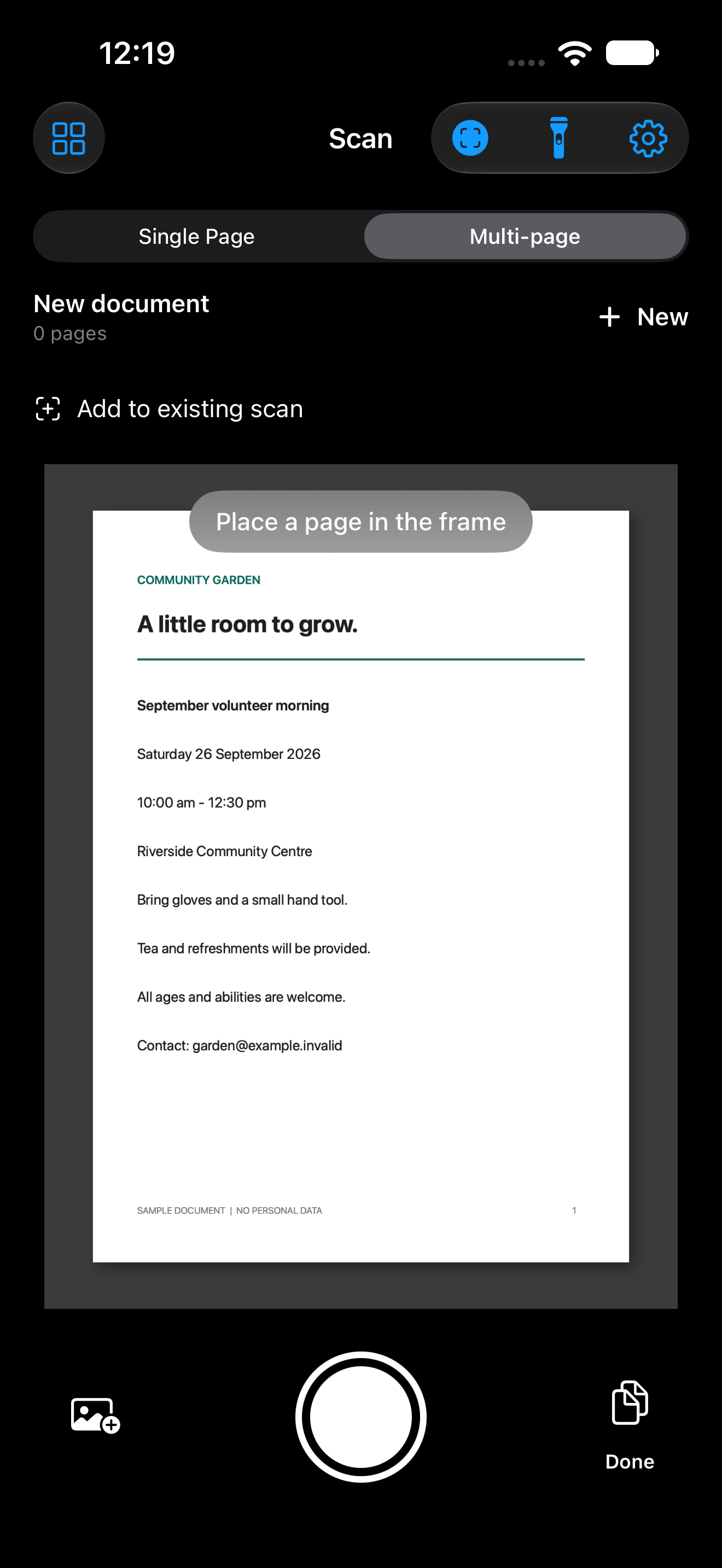
Choose Single Page to save each capture as its own scan. Choose Multi-page to keep related pages together. Tap New when you want to start again.
Your saved scans stay in Library. To add pages later, choose Add to existing scan on the camera or Add pages from the scan's Library menu.
Improve a page
Keep the whole page in view and use even light. A plain surface that contrasts with the paper helps scandango find the edges.
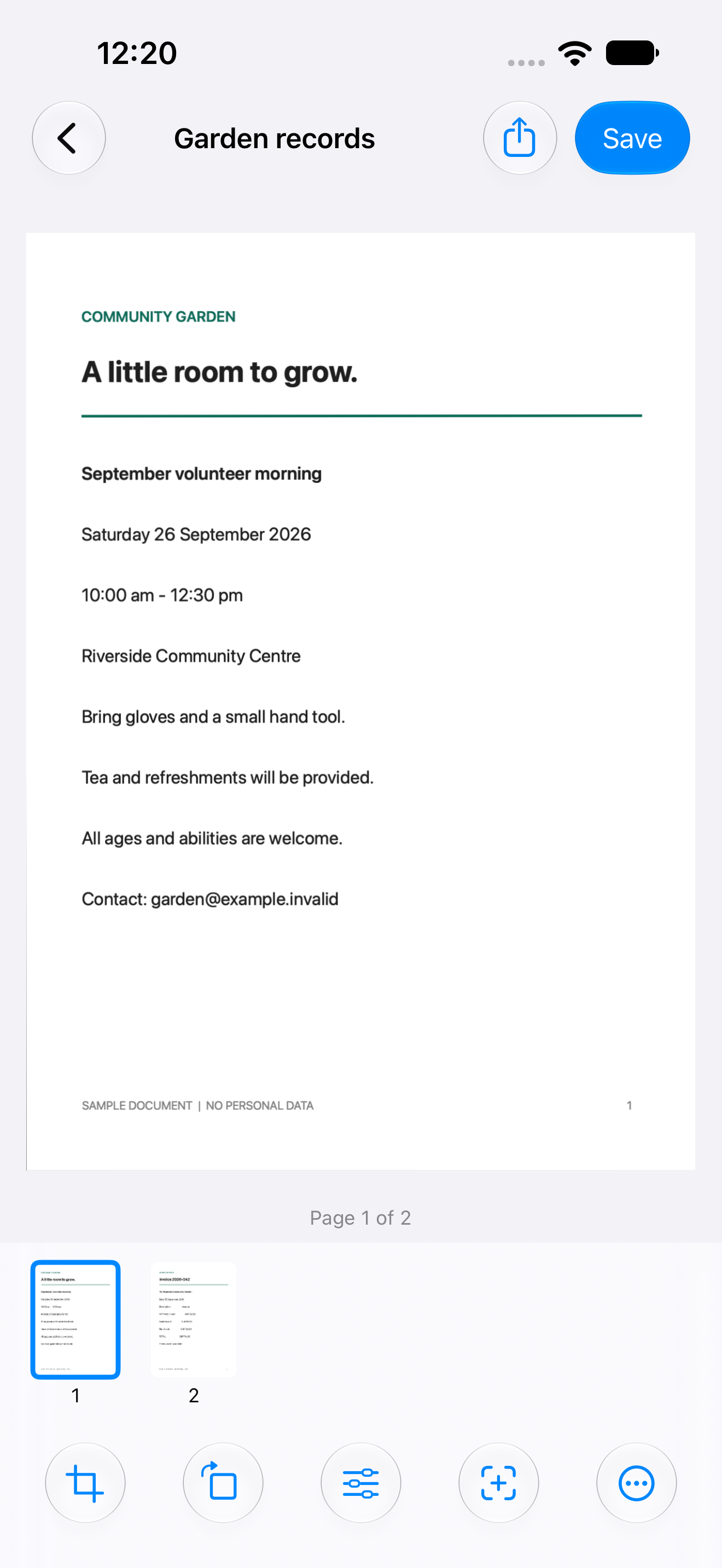
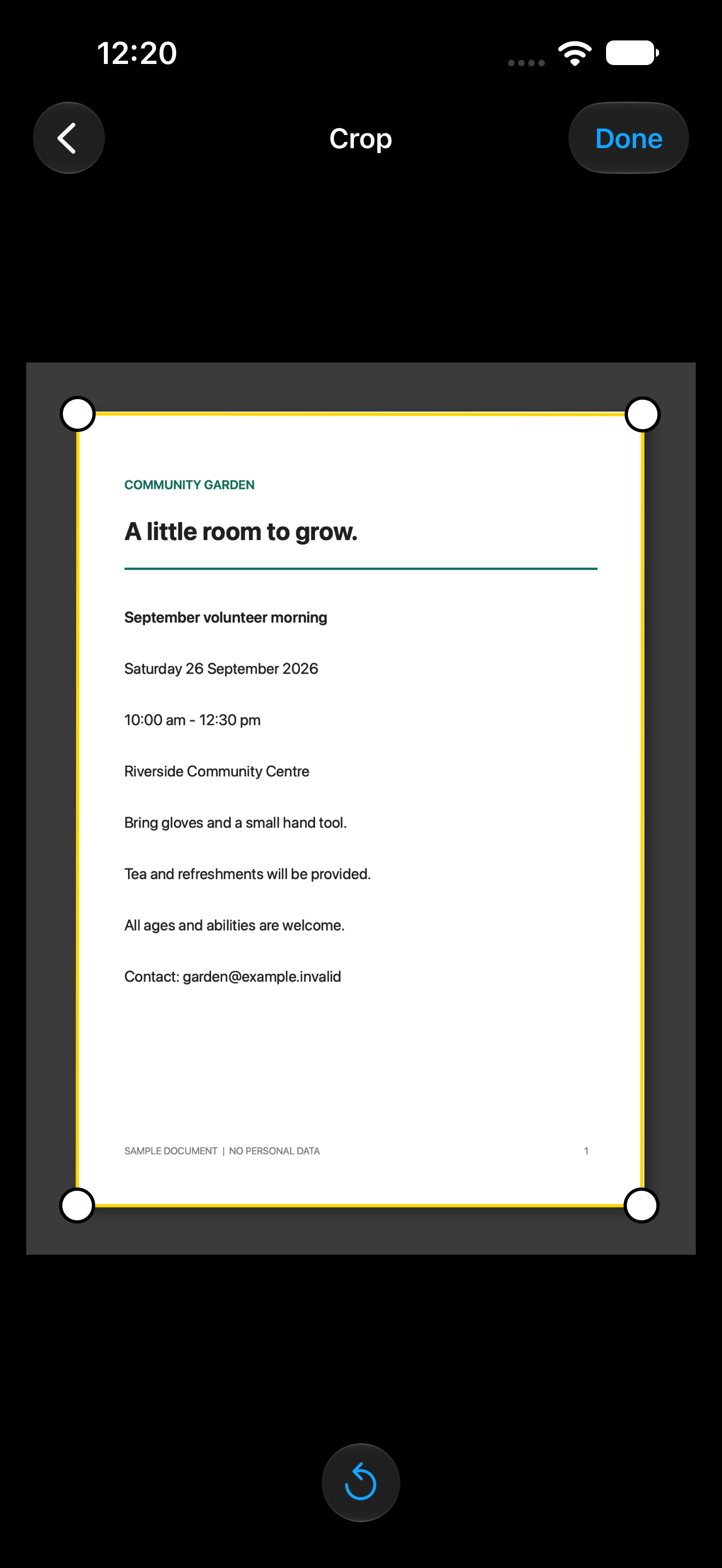
In Review, use Crop to move the corners. Adjust lets you choose a look, change contrast and optionally flatten a curved page. The source photo stays available for later edits.
Save or share
Tap Done to review the current scan. Share opens the iOS share sheet. Save gives you PDF, PNG and text options, including Files and Photos.
If you cancel a share, your scan stays in Library. scandango records an export only when the destination reports success.
Every feature is included
Create searchable PDFs, export text, protect PDFs with passwords, use custom page sizes and export batches without payment.
scandango has no in-app purchases, subscriptions or upgrade prompts.
Camera or Photos access
Open iPhone Settings, find scandango and check its access. The app needs camera access for new scans. Photos access is add-only when you save pages there. Imports use Apple's system picker.
Report a problem
Use Send Feedback in scandango Settings or email support. Include the app version, iPhone model, iOS version and the steps that led to the problem.
Do not send passwords or private scans. If an image is useful, remove private details or use a sample document.